Class Manager - Membership
About Membership
The Membership module provides staff with the ability to manage
the organisation's membership, including optional Committee Membership. Memberships
may be annual (12 months from the date of purchase), or term (for one teaching
term only).
Membership types:
·
Individual membership.
·
Family membership.
·
Group membership.
·
Postcode membership (discounted for a residential postcode).
·
Children’s membership (based on age<18).
·
Life membership.
·
No membership.
·
Enforced membership. All students must be a current member
before their enrolment is accepted.
·
Encouraged membership. Students are encouraged to be members
through course fee discounts but membership remains
optional.
Membership Fees
The system administrator can set separate, default membership
fees for individuals, family and group memberships. When adding new or changing
existing members, the fee may be changed manually to any value including $0.00
if a fee does not apply.
Membership Period:
The period of membership is defined by the membership start and end dates and
is for a period of 12 months starting from the creation date of an annual membership, or until the end of the term
in which a term membership is created. In either case, membership start and end dates may be manually
adjusted from the membership management window.
Individual, Family, Group
Membership: Membership can either be individual where the annual or term membership
fee applies, family where one membership fee applies to all members of a
family, or group for User Group membership. The value of the membership fee,
the family membership fee and the group membership fee
are defined in the system options
table. Clicking
the membership link in the functions menu produces: To create a new
individual member ·
Enter the surname of the individual in the "Surname of
Individual" box To create a family
membership ·
Enter the surname of the family member in the "Surname of
Individual" box. To create a group
membership ·
If the group does not exist, create it from the Functions/Groups menu. If a membership has expired, then it must be renewed by creating
it as a new membership. Online Self Renewal of
Membership Those sites that are configured
to use online credit card services for web based purchases may have a
membership renewal link on their web pages. By using this link, members
may renew their own memberships with credit or debit card payments. Renewal Reminders A list of membership expiry renewal reminders may be generated
from the reports window, followed by an automatic dispatching of reminders via
email. Alternatively, Class Manager may be configured
to automatically dispatch email reminders on the 15th of each
month for all those whose memberships will expire in the following month. Either
option may be configured in the system options window by setting the value of
"membership_expiry" to either
"auto" or "reports". Membership details of current
members can be changed by selecting an existing member in the "Change
Status of" drop down menu. The membership details will change to those of
the selected individual, family or group member. Any of the displayed fields
can be changed, with the exception of the unique
member number which will always belong to the member even after their
membership expires and will be retrieved by Class
Manager for future membership renewals. ·
Select the member's name in the "Surname"
menu. ·
Make sure that the member's fee box is empty. ·
Set the member's "end" date to equal the
"start" date to terminate the current membership. ·
Click the "Update" button. ·
Now add them as a new individual member as described above. Individual and group membership may be deleted by clicking the "terminate membership" link.
font-family:"Arial",sans-serif;'> To remove a person from a family
membership and to make them a paid up individual member: ·
Select the member's name in the "Surname"
menu. ·
Change the value of fee from
$0.00 to the value of the individual membership fee. ·
Click the "Update" button. ·
Membership details of current members can be displayed by
finding the members name in the "Surname" drop down menu. ·
All current members can be listed by clicking the "List
Current Members" button. ·
Both past and current members can be listed from the People/List/Members Functions menu. ·
Both current and past members can be found from the People/Search/Membership No Functions menu. 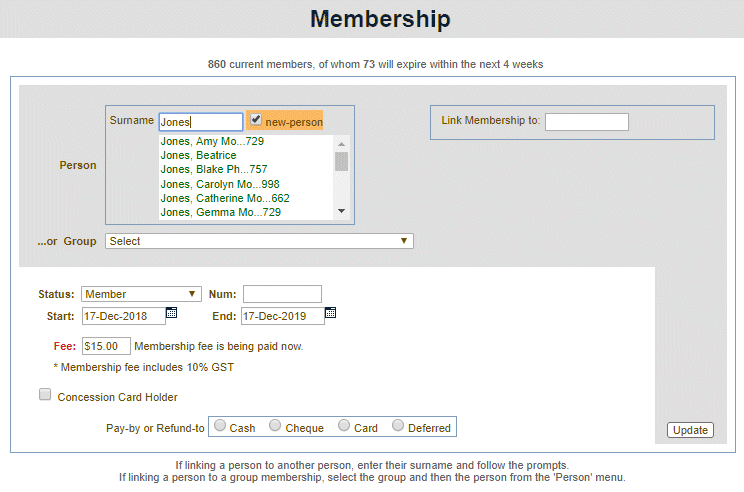
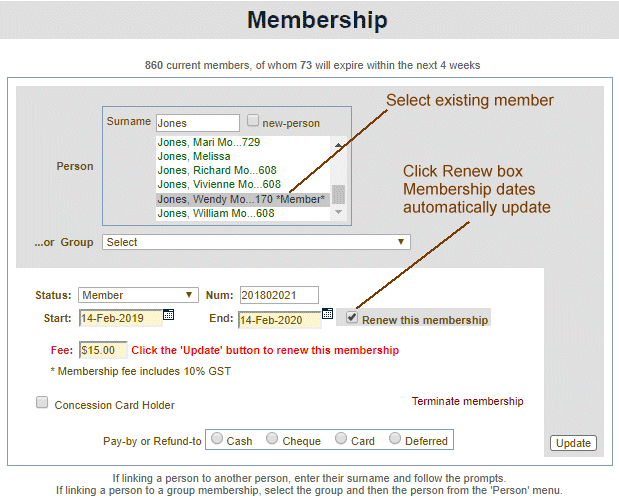
However, if a membership is current, then a renewal of membership may be done
for another 12 months, before it expires. In this case, the new membership
start date is set to one day after the existing membership end date and the new
membership end date is set to be 12 months after the new start date. The renew
link appears on the membership page when an existing member is selected from
the "members" drop down menu. When clicked, the start and end dates
will be updated automatically, but may be changed manually before clicking the
"Update" button.
To include an existing individual into the family membership of another member: